

FrontEnd Crud
The frontend of Rayuki is divided into three main parts:
- RAM: Used to store the objects you need.
- Visual Components: Responsible for displaying the required information.
- State Management: Allows sharing state between components.
First, you’ll design your page using generated data. Later, you’ll establish the connection between the backend and frontend.
Navigation and Frame Creation
Begin by editing the content of the TodoFrame.wcl.avt file to add sample todos. To store these todos, create a todos: Todo[] property, which will be watchable. A watchable property notifies observers whenever it changes. For more information, see the Aventus documentation.
import { Todo } from "../../../../generated/Data/Todo.data.avt";
namespace Application.Main.Frame {    export class TodoFrame extends Core.System.Frame implements Aventus.DefaultComponent {        //#region variables        @Watch()        protected todos: Todo[] = [];        //#endregion
        //#region constructor        public constructor() {            super();            // Generates sample data in the constructor            this.generateFakeData();        }        //#endregion
        //#region methods        private generateFakeData() {            let todo1 = new Todo();            todo1.Name = "Write documentation";            todo1.Done = false;
            let todo2 = new Todo();            todo2.Name = "Run unit tests";            todo2.Done = false;
            this.todos = [                todo1,                todo2            ]        }
        /**         * @inheritdoc         */        public override pageTitle(): string | undefined {            return "Your Tasks";        }        /**         * @inheritdoc         */        public override onShow() { }        /**         * @inheritdoc         */        public override onHide() { }        //#endregion    }}
To check if this setup is working, modify TodoFrame.wcv.avt to display the task names.
<h1>Your Tasks</h1>
for(let todo of this.todos) {    <div>{{ todo.Name }}</div>}
You should now see your tasks displayed.
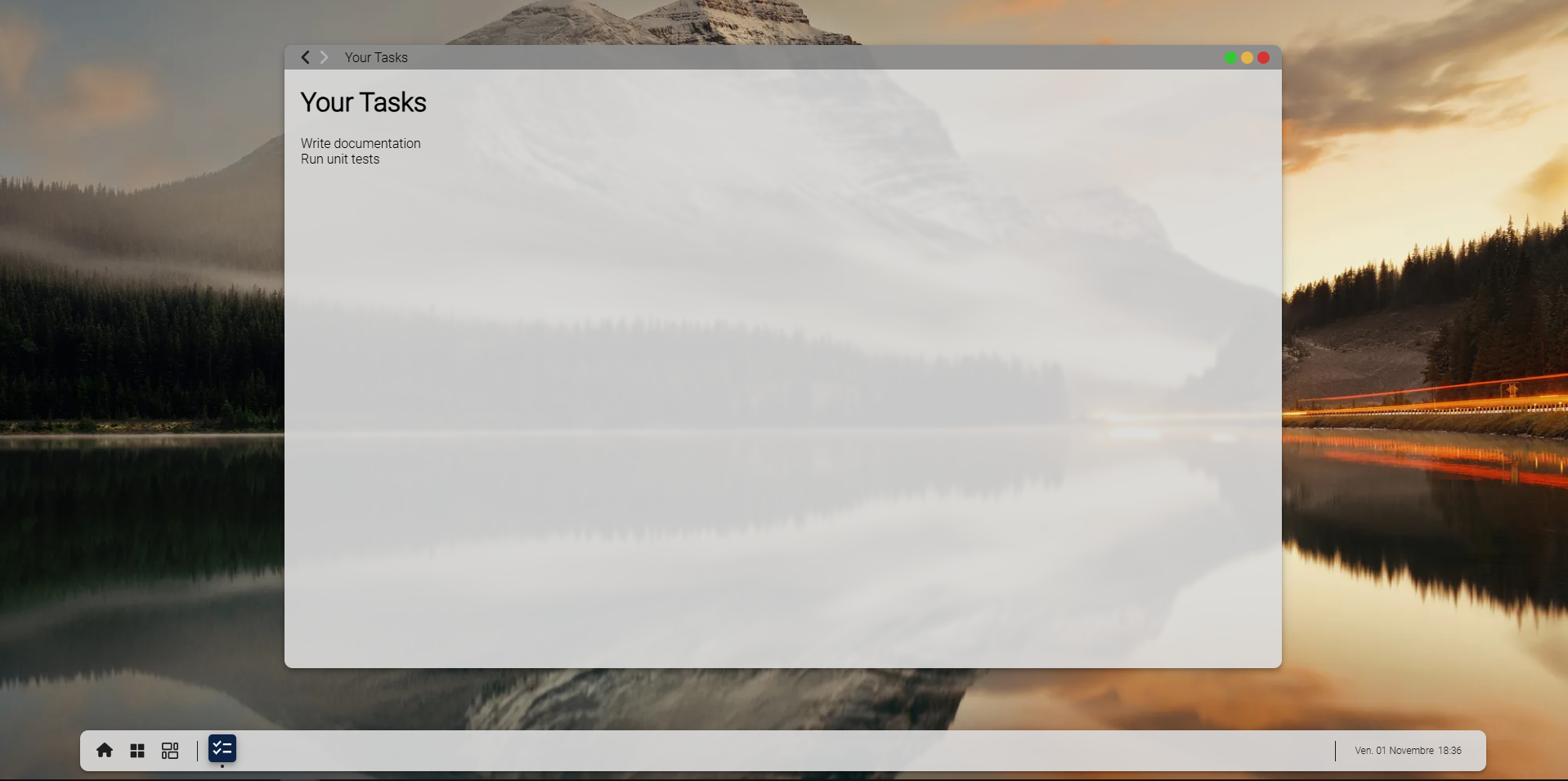
In AventusJS, you can use loops and conditions for a dynamic rendering.
Next, let’s add a button to create new tasks. Add an rk-button with an @press attribute that calls a function named addTodo. In AventusJS, the @ symbol binds an event, so @press calls the specified function when pressed. For more details on press, see the documentation.
<h1>Your Tasks</h1>
<rk-button class="add-btn" @press="addTodo">Add a Task</rk-button>
for(let todo of this.todos) {    <div>{{ todo.Name }}</div>}
The addTodo function should now appear with a red underline, indicating that it doesn’t yet exist. Open TodoFrame.wcl.avt, place your cursor before the #endregion in the methods region, press Ctrl + ., and select “Import missing methods” to automatically generate the addTodo function.
namespace Application.Main.Frame {    export class TodoFrame extends Core.System.Frame implements Aventus.DefaultComponent {        ...        //#region methods
        /**         * Adds a new todo item.         */        protected addTodo() {            throw new Error("Method not implemented.");        }        //#endregion    }}
Now, you can create a new page to manage the creation or editing of todos. Call this page TodoEditFrame.
Add an input for the name and a checkbox for the done status.
Also, add a new route in the main application named /todo/{id:number} where {id:number} indicates the route can accept any number, useful when editing a todo.
Finally, in the addTodo method, create a navigation action.
namespace Application.Main.Frame {    export class TodoFrame extends Core.System.Frame implements Aventus.DefaultComponent {        ...        //#region methods
/** * Navigates to the editing route. Convention: id 0 => new item. */ protected addTodo() { this.application.navigate("/todo/0") } //#endregion }}namespace Application.Main.Frame { export class TodoEditFrame extends Core.System.Frame implements Aventus.DefaultComponent { //#region methods /** * @inheritdoc */ public override pageTitle(): string | undefined { return "Create a Task"; } /** * @inheritdoc */ public override onShow() { } /** * @inheritdoc */ public override onHide() { } //#endregion }}:host { rk-checkbox { margin: 10px 0; --checkbox-margin-label: 10px; }}<h1>Create a Task</h1>
<rk-input label="Name"></rk-input><rk-checkbox label="Completed?" left_label></rk-checkbox><rk-button color="green">Submit</rk-button>import { TodoFrame } from "./frame/TodoFrame/TodoFrame.wcl.avt";import { Index } from "./frame/Index/Index.wcl.avt";import { TodoEditFrame } from "./frame/TodoEditFrame/TodoEditFrame.wcl.avt";
namespace Application { export class Main extends Core.System.Application implements Aventus.DefaultComponent { //#region methods ... /** * @inheritdoc */ protected override async defineRoutes(): Promise<void> { this.addRoute("/", Index); this.addRoute("/todo", TodoFrame); // Adding the editing route this.addRoute("/todo/{id:number}", TodoEditFrame); } //#endregion }}Your application should now look similar to the image below:
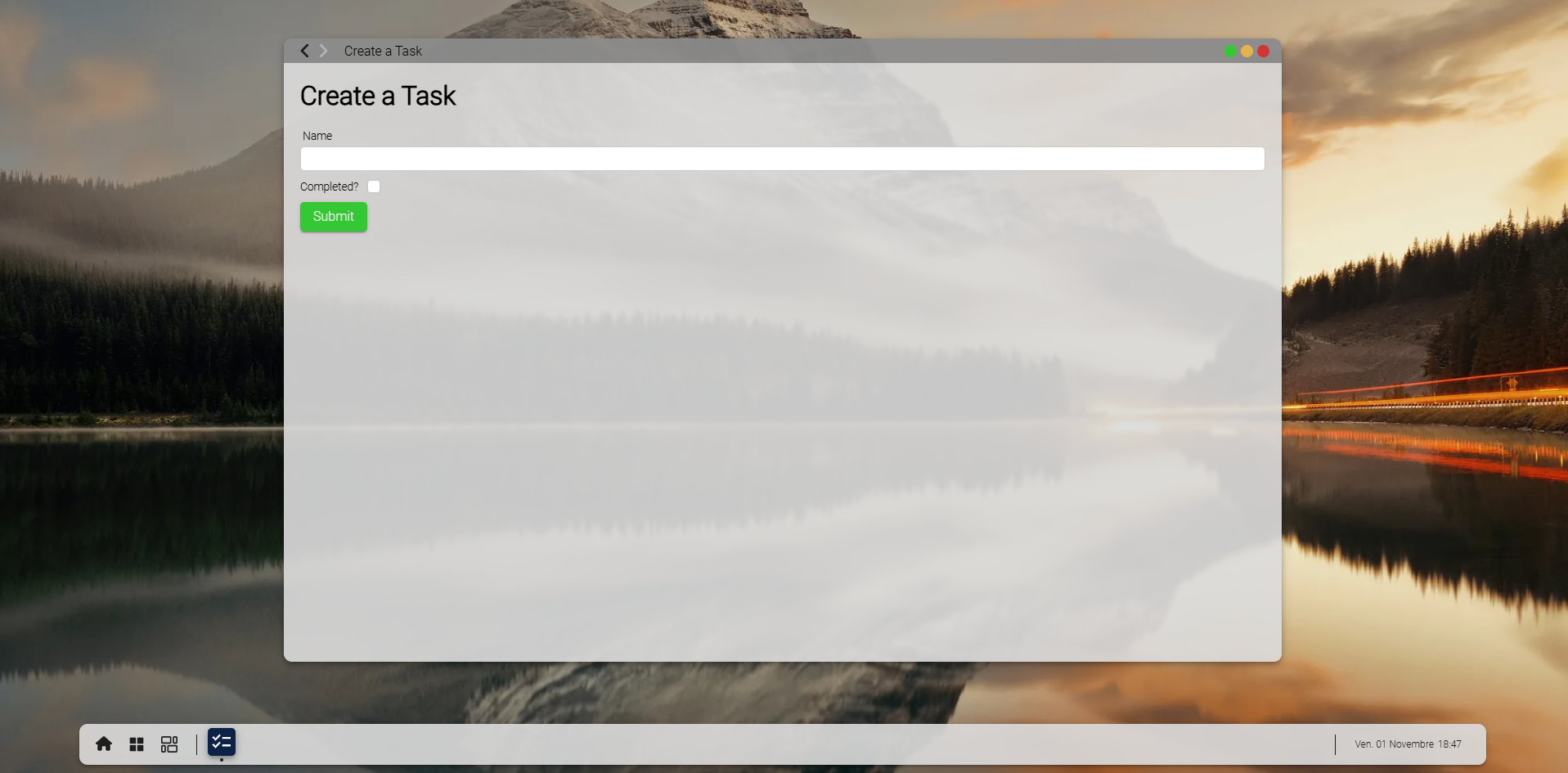
State Management
Now, you can manage the state that enables sharing information between views. To do this, create a new folder at Front/src/states and add a new state called TodoEditState.state.avt. In Rayuki, states are preserved in the history, allowing data retention between page refreshes. A built-in state called Core.State.CreateOrUpdate<> already exists for handling edits. This class takes one parameter: the type of object being edited.
For better understanding, refer to the implementation below and follow the steps to create the TodoEditState.state.avt file in the Front/src/application/Main/frame/TodoEditFrame folder. This file should contain a class that extends CreateOrUpdate<Todo>. You can quickly generate missing functions by pressing ctrl + ..
import { Todo } from "../../../../generated/Data/Todo.data.avt";
namespace Application.Main.Frame {    export class TodoEditState extends Core.State.CreateOrUpdate<Todo> implements Aventus.IState {
        /**         * Defines the RAM object for this state         */        protected override defineRAM(): Aventus.Ram<Todo> {            throw new Error("Method not implemented.");        }
        /**         * Defines the object name for this state (used to generate routes)         */        protected override defineObjectName(): string {            return "todo";        }
        /**         * Creates a new Todo element with default properties         */        public override newElement(): Todo {            const result = new Todo();            result.Name = "My task";            return result;        }
        /**         * Specifies the fields in Todo that should be monitored         */        protected override defineForm(): Core.Components.FormSchema<Partial<Todo>> {            return {                Name: {                    // Optionally add field-specific validation here                },                Done: {}            }        }
        /**         * Configures the form behavior for this state         */        protected override configureForm(config: Core.Components.VirtualFormConfig): Core.Components.VirtualFormConfig {            return config;        }    }}
This state requires a Ram<Todo> object which has yet to be created.
Create a new folder called Front/src/ram, right-click it, and use the provided templates (from the setup folder /installation/setup) to create a new RAM. Select Rayuki > Ram > http, then input Todo in the dropdown. Once the file is generated, fix any errors with ctrl + ..
import { Todo } from "../generated/Data/Todo.data.avt";import { TodoRouter } from "../generated/Routes/TodoRouter.lib.avt";
namespace Ram {
    export class TodoRAM extends AventusSharp.RAM.RamHttp<Todo> implements Aventus.IRam {
        /**         * Singleton to store data         */        public static getInstance(): TodoRAM {            return Aventus.Instance.get(TodoRAM);        }
        /**         * Specifies the primary key field in Todo         */        public override defineIndexKey(): keyof Todo {            return 'Id';        }
        /**         * Returns the correct type for deserializing data         */        protected override getTypeForData(objJson: Aventus.KeysObject<Todo> | Todo): new () => Todo {            return Todo;        }
        /**         * Defines routes for this RAM object         */        public override defineRoutes(): AventusSharp.Routes.StorableRouter<Todo> {            return new TodoRouter();        }    }}
Now that you have a RAM object, you can integrate it into the state.
import { Todo } from "../../../../generated/Data/Todo.data.avt";import { TodoRAM } from "../../../../ram/Todo.ram.avt";
namespace Application.Main.Frame {    export class TodoEditState extends Core.State.CreateOrUpdate<Todo> implements Aventus.IState {
        /**         * Defines the RAM object for this state         */        protected override defineRAM(): Aventus.Ram<Todo> {            return TodoRAM.getInstance();        }        ...    }}
Your state is now ready for use. Navigate to the addTodo function in the TodoFrame.wcl.avt frame and replace "/todo/0" with new TodoEditState().
import { Todo } from "../../../../generated/Data/Todo.data.avt";import { TodoEditState } from "../TodoEditFrame/TodoEditState.state.avt";
namespace Application.Main.Frame {    export class TodoFrame extends Core.System.Frame implements Aventus.DefaultComponent {        ...
        /**         * Navigates to the editing route.         */        protected addTodo() {            this.application.navigate(new TodoEditState());        }    }}
The navigation behavior should remain unchanged. You should still be able to transition between frames smoothly.
Now, set up the editing frame’s state and bind the input fields. To define the state for the editing frame, change the parent class in TodoEditFrame.wcl.avt from Core.System.Frame to Core.System.FrameState<TodoEditState>, then use ctrl + . to resolve the imports.
import { TodoEditState } from "./TodoEditState.state.avt";
namespace Application.Main.Frame {    export class TodoEditFrame extends Core.System.FrameState<TodoEditState> implements Aventus.DefaultComponent {
        /**         * Specifies the state class to be used         */        protected override getState(): new (...args: any[]) => TodoEditState {            return TodoEditState;        }
        /**         * Defines actions on state mismatch         */        protected override onStateMissmatch(): Aventus.Asyncable<string | boolean | Core.State.ApplicationState> {            return false;        }        ...    }}
To bind the inputs, inject the form fields located within the state inside the property formPart. formPart will bind your value and manage errors. In AventusJs, variable injection uses the : symbol. You can read the documentation for more informations.
<h1>Create a Task</h1><rk-input label="Name" :formPart="this.state.form.Name"></rk-input><rk-checkbox label="Completed?" left_label :formPart="this.state.form.Done"></rk-checkbox><rk-button color="green">Submit</rk-button>Finally, add a function to save the data. Attach the @press="save" attribute to the submit button. Then, import the function with ctrl + ., and define it to save the state data via the RAM.
import { TodoEditState } from "./TodoEditState.state.avt";
namespace Application.Main.Frame {    export class TodoEditFrame extends Core.System.FrameState<TodoEditState> implements Aventus.DefaultComponent {        ...
/** * Saves the Todo data and navigates back if successful */ protected async save() { if(await this.state.save()) { this.application.navigatePrevious(true); } } }}<h1>Create a Task</h1><rk-input label="Name" :formPart="this.state.form.Name"></rk-input><rk-checkbox label="Completed?" left_label :formPart="this.state.form.Done"></rk-checkbox><rk-button color="green" @press="save">Submit</rk-button>To verify everything works, click the submit button with a lowercase name. If the validation fails, the input will retain focus, indicating that the code is functioning.
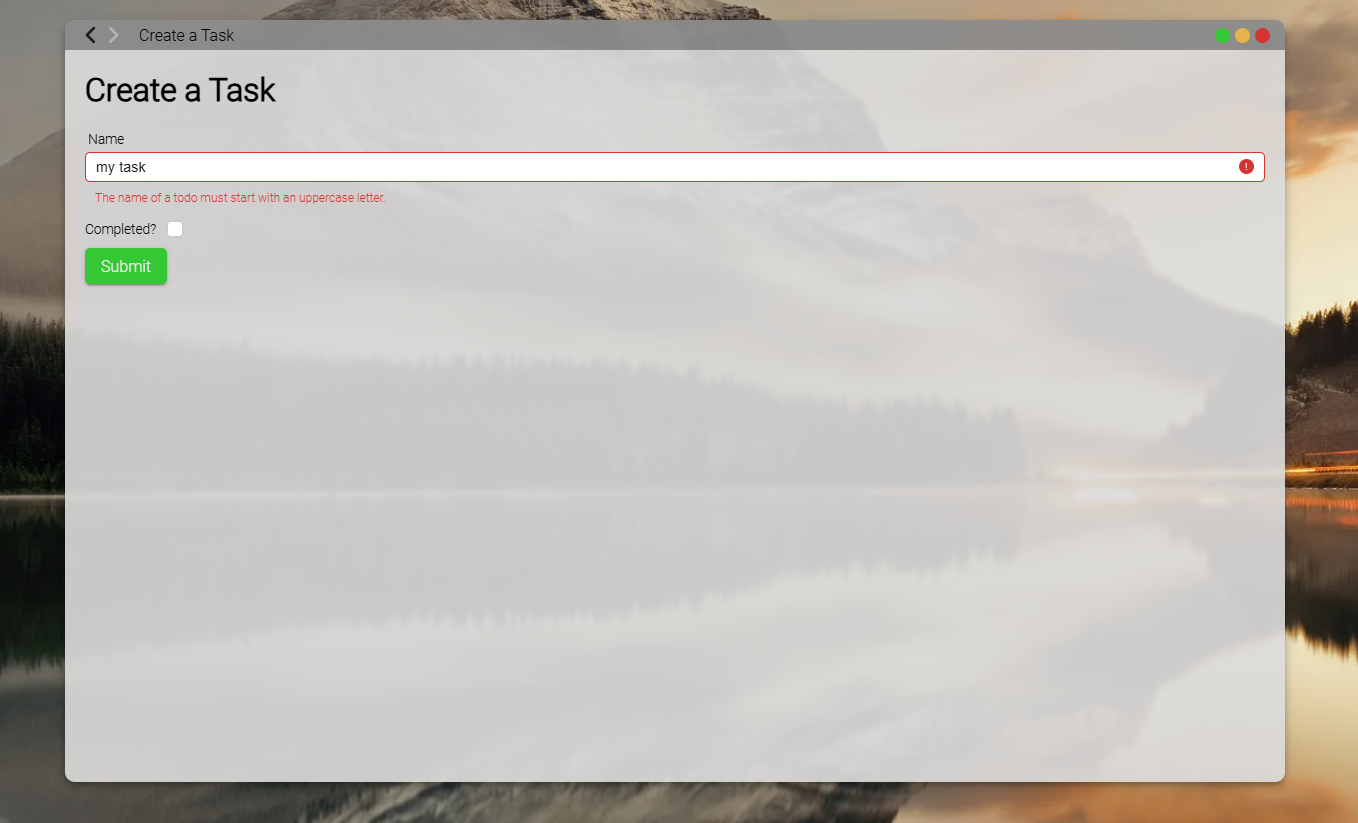
Now that full binding is complete, you can navigate back and forth (with navigation button on the top left corner of your application) and data should persist in the input fields. This will also apply if you refresh the page (F5).
If your task name starts with an uppercase letter, the new task will be saved, and you’ll be redirected to the todo list.
Sync Data with RAM in Rayuki
Currently, the todo list is still populated with generated tasks. Now, you can load tasks from your RAM and listen to onCreated, onUpdated, and onDeleted events to dynamically update the list. The following implementation details how to set up and bind to these events, ensuring real-time updates to your todo list.
import { Todo } from "../../../../generated/Data/Todo.data.avt";import { TodoRAM } from "../../../../ram/Todo.ram.avt";import { TodoEditState } from "../TodoEditFrame/TodoEditState.state.avt";
namespace Application.Main.Frame {    export class TodoFrame extends Core.System.Frame implements Aventus.DefaultComponent {
        //#region Variables        @Watch()        protected todos: Todo[] = [];        //#endregion
        //#region Methods
        /**         * Load all todos and bind to Create, Update, and Delete (CUD) events         */        protected async bindToRam() {            const ram = TodoRAM.getInstance();
            // Load todos with loading feedback and error handling            let result = await this.application.executeWithLoading(ram.getListWithError());            if (result) {                this.todos = result;            }
            ram.onCreated(this.onCreated);            ram.onUpdated(this.onUpdated);            ram.onDeleted(this.onDeleted);        }
        /**         * Unbind CUD events to prevent memory leaks         */        protected async unbindFromRam() {            const ram = TodoRAM.getInstance();            ram.offCreated(this.onCreated);            ram.offUpdated(this.onUpdated);            ram.offDeleted(this.onDeleted);        }
        /**         * Triggered when a todo is created; adds it to the list         */        @BindThis()        protected onCreated(todo: Todo) {            this.todos.push(todo);        }
        /**         * Triggered when a todo is updated; updates it in the list         */        @BindThis()        protected onUpdated(todo: Todo) {            let index = this.todos.findIndex(t => t.Id === todo.Id);            if (index > -1) {                Aventus.Watcher.trigger("UPDATED", this.todos[index]);            } else {                this.todos.push(todo);            }        }
        /**         * Triggered when a todo is deleted; removes it from the list         */        @BindThis()        protected onDeleted(todo: Todo) {            let index = this.todos.findIndex(t => t.Id === todo.Id);            if (index > -1) {                this.todos.splice(index, 1);            }        }
        /**         * Returns the title for this page         */        public override pageTitle(): string | undefined {            return "Your Tasks";        }
        /**         * Called when the component is first displayed         */        public override onShow() {}
        /**         * Called when the component is hidden         */        public override onHide() {}
        /**         * Navigates to the TodoEditState to add a new task         */        protected addTodo() {            this.application.navigate(new TodoEditState());        }
        /**         * Binds the RAM on initial connection         */        protected override postCreation(): void {            super.postConnect();            this.bindToRam();        }
        /**         * Unbinds the RAM on component destruction to free resources         */        protected override postDestruction(): void {            super.postDestruction();            this.unbindFromRam();        }
        //#endregion    }}
With this setup, todos can now be added to your database and displayed in the view. The component listens to changes and automatically updates the list when tasks are created, updated, or deleted. Each event (onCreated, onUpdated, onDeleted) is bound to specific actions, ensuring the list dynamically reflects the current state of the database.
Watcher.trigger
Why Use Watcher.trigger("UPDATED") Instead of Direct Assignment?
To ensure the reactivity of the task list in the interface, it’s important to understand why we use Aventus.Watcher.trigger("UPDATED", this.todos[index]); instead of directly assigning the updated object with this.todos[index] = todo.
In Aventus, this.todos is a Watcher, which monitors data changes and automatically triggers updates in the interface. However, for performance optimization, the watcher only triggers updates if it detects a meaningful change in the data. In our case, each todo in this.todos directly references an object from RAM. This means that even if the todo object is updated in RAM, its reference remains the same in this.todos. Consequently, the watcher does not detect any change because, in terms of object reference, the old and new versions of todo are identical.
Since the watcher cannot detect this update directly, we explicitly force it to trigger with Watcher.trigger("UPDATED", this.todos[index]);. This command tells the watcher to notify the interface that a change has occurred, ensuring the UI reflects the latest data, even if the object reference has not changed.
Alternative Approach: Cloning the Object
Another approach to handle this is to clone the todo object before adding it to this.todos, using todo.clone(). This creates a new, independent instance of the todo object in this.todos, which differs from the original object in RAM. As a result, any changes to the original RAM object will no longer be considered identical to the todo in this.todos. This way, the watcher detects an actual change and can update the interface directly with this.todos[index] = todo.clone().
Choosing Between the Approaches
Both approaches have their advantages:
-
Forcing the trigger with
Watcher.trigger("UPDATED", ...)is a straightforward and efficient method when you want to keep the data in sync without creating additional copies. It ensures that updates are detected, but it requires explicitly managing the trigger. -
Cloning the object with
todo.clone()allows updates to be handled more naturally by the watcher, which can then detect the changes automatically. This method is ideal if you prefer to avoid manual triggers, though it does introduce a small overhead by creating a new instance in memory.
The choice between these methods depends on your specific requirements for performance and how your data is structured within the project.
Subcomponent design
The current design of task display is incomplete. You’ll replace the DIV element, which displays the name of the todo item, with a web component that will handle the injected todo property. This component will be named TodoDisplay.
You can place components in the Front/src/component folder, or alternatively, create a component directory within Front/src/application/Main/frame/TodoFrame/component. Since this component will only be used within the TodoFrame, we’ll use the second option.
import type { Todo } from "../../../../../../generated/Data/Todo.data.avt";
namespace Application.Main.Frame.TodoFrame.Component {    export class TodoDisplay extends Aventus.WebComponent implements Aventus.DefaultComponent {        //#region static        //#endregion
        //#region props        //#endregion
        //#region variables        // Defining the injected property        @Watch()        public todo?: Todo;        //#endregion
        //#region constructor        //#endregion
//#region methods //#endregion }}:host { align-items: center; display: flex; margin: 10px; width: 100%;}<div class="name">{{this.todo?.Name}}</div>Each web component class should start with the name of the current application. For example, the TodoDisplay class in the Demo application would produce the demo-todo-display tag.
<h1>Your Tasks</h1><rk-button class="add-btn" @press="addTodo">Add a Task</rk-button>
<div class="todo-list">    <!-- Injecting each todo into the component tag -->    for(let todo of this.todos) {        <demo-todo-display :todo="todo"></demo-todo-display>    }</div>
You need to modify the display to allow editing, deletion, and display of the “Done” status for tasks. Start with the design, as the logic will be explained later.
Attribute and Watch
For this part, it’s essential to understand how AventusJs allows the creation of attributes on a tag. You can refer to the documentation here.
import type { Todo } from "../../../../../../generated/Data/Todo.data.avt";
namespace Application.Main.Frame.TodoFrame.Component {    export class TodoDisplay extends Aventus.WebComponent implements Aventus.DefaultComponent {
        //#region props        // Creating an attribute to define the component state, set as protected to prevent external modification        @Attribute()        protected done!: boolean;        //#endregion
//#region variables // Defining the property that will be injected @Watch() public todo?: Todo; //#endregion }}/*Adding some stylesThe :host selector corresponds to the component's tag itself*/:host { align-items: center; display: flex; flex-wrap: wrap; gap: 15px; margin: 10px; width: 100%;
.action { align-items: center; display: flex; gap: 5px;
mi-icon[icon="delete"] { color: var(--red); }
mi-icon[icon="edit"] { color: var(--blue); } }}
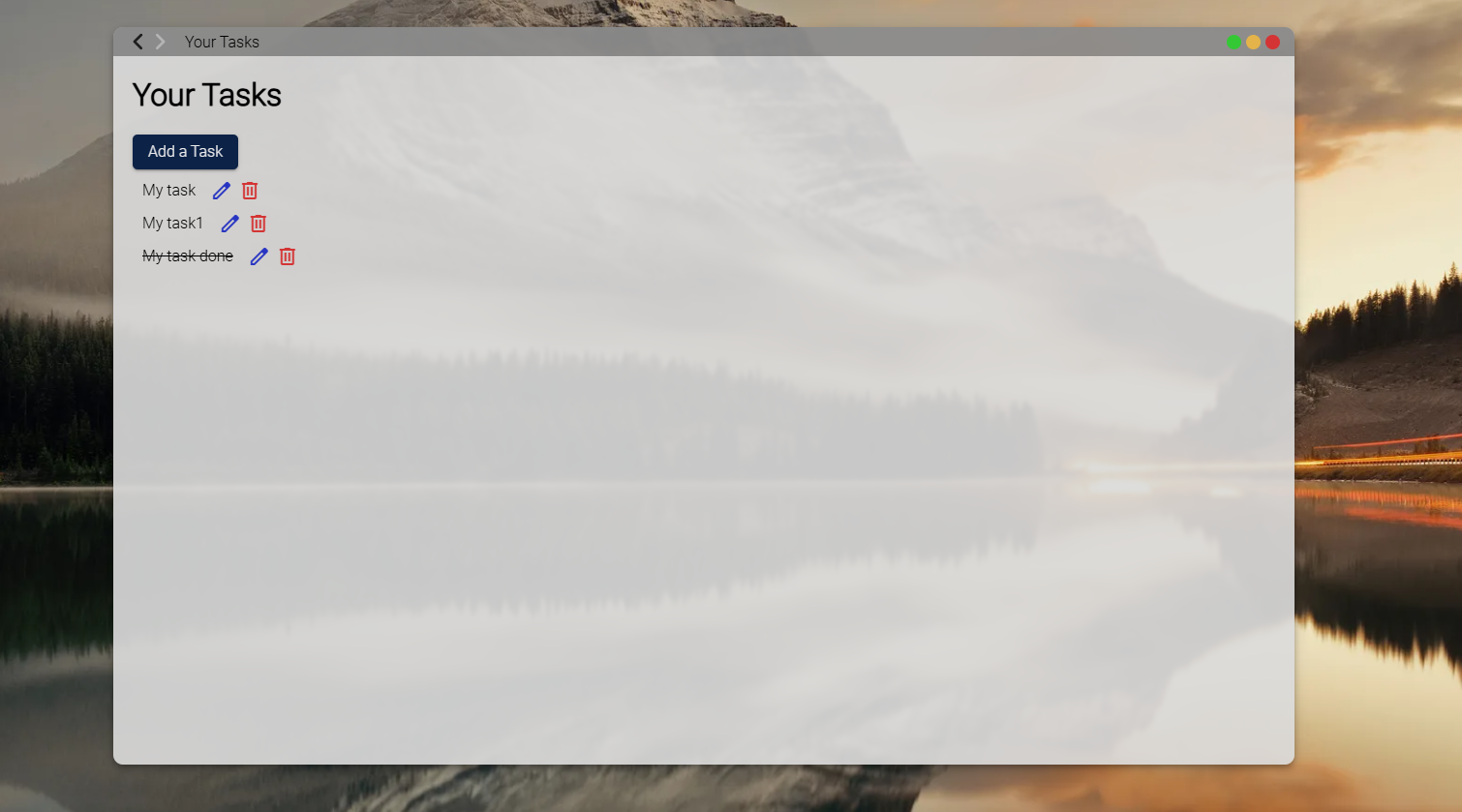
/* Defining the component state through attributes set on the tag */:host([done]) .name { text-decoration: line-through;}<div class="name">{{this.todo?.Name}}</div><div class="action"> <mi-icon icon="edit"></mi-icon> <mi-icon icon="delete"></mi-icon></div>Currently, the “Done” state isn’t functional. You can bind it using a callback function within the @Watch decorator. More information is available here.
import { EditTodoState } from "../../states/EditTodoState.state.avt";import type { Todo } from "../../../../../../generated/Data/Todo.data.avt";
namespace Application.Main.Frame.TodoFrame.Component  {    export class TodoDisplay extends Aventus.WebComponent implements Aventus.DefaultComponent {        ...        //#region variables        @Watch((target: TodoDisplay, action: Aventus.WatchAction, path: string, value: any) => {            target.done = target.todo?.Done ?? false;        })        public todo?: Todo;        //#endregion        ...    }}
With this code, completed tasks are now displayed with a strikethrough style.
Update Logic
To enable editing, add a press event to the edit icon that will trigger a function to switch states.
<div class="name">{{this.todo?.Name}}</div><div class="action"> <mi-icon icon="edit" @press="edit"></mi-icon> <mi-icon icon="delete"></mi-icon></div>import { TodoEditState } from "../../../TodoEditFrame/TodoEditState.state.avt";import type { Todo } from "../../../../../../generated/Data/Todo.data.avt";
namespace Application.Main.Frame.TodoFrame.Component { export class TodoDisplay extends Aventus.WebComponent implements Aventus.DefaultComponent {
//#region props @Attribute() protected done!: boolean; //#endregion
//#region variables @Watch((target: TodoDisplay, action: Aventus.WatchAction, path: string, value: any) => { target.done = target.todo?.Done ?? false; }) public todo?: Todo; //#endregion
//#region methods protected edit() { // Locate the parent application const application = this.findParentByType(Core.System.Application); if (!application) { Core.System.Os.instance.alert({ title: "Error", description: "Application not found" }); return; }
if (!this.todo) { application.alert({ title: "Error", description: "No todo item to edit" }); return; }
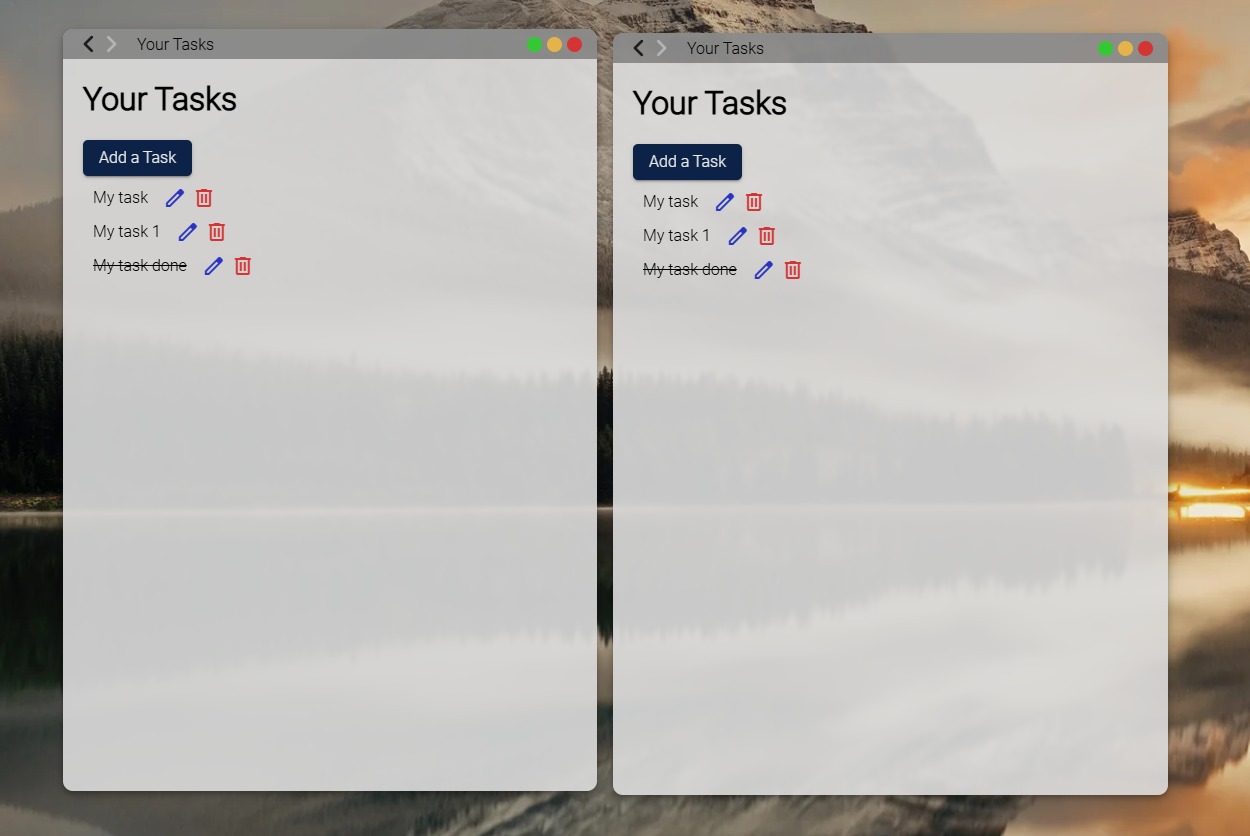
// Navigate using our state application.navigate(new TodoEditState(this.todo)); } //#endregion }}Now, you can edit a task’s name. If the application is open in two windows, editing an item in one window will automatically update the display in the other window.
Delete Logic
Lastly, link a delete function to the delete button, which will prompt the user for confirmation.
<div class="name">{{this.todo?.Name}}</div><div class="action"> <mi-icon icon="edit" @press="edit"></mi-icon> <mi-icon icon="delete" @press="destroy"></mi-icon></div>import { TodoEditState } from "../../../TodoEditFrame/TodoEditState.state.avt";import type { Todo } from "../../../../../../generated/Data/Todo.data.avt";import { TodoRAM } from "../../../../../../ram/Todo.ram.avt";
namespace Application.Main.Frame.TodoFrame.Component { export class TodoDisplay extends Aventus.WebComponent implements Aventus.DefaultComponent { ... protected async destroy() { // Locate the parent application const application = this.findParentByType(Core.System.Application); if (!application) { Core.System.Os.instance.alert({ title: "Error", description: "Application not found" }); return; }
if (!this.todo) { application.alert({ title: "Error", description: "No todo item to delete" }); return; }
// Ask for confirmation const result = await application.confirm({ title: "Delete Confirmation", description: `Are you sure you want to delete the task "${this.todo.Name}"?`, min_width: '400px' true_txt: "Yes", false_txt: "No" });
if (result) { // Delete from RAM const ram = TodoRAM.getInstance(); await application.executeWithLoading(ram.deleteWithError(this.todo)); } } }}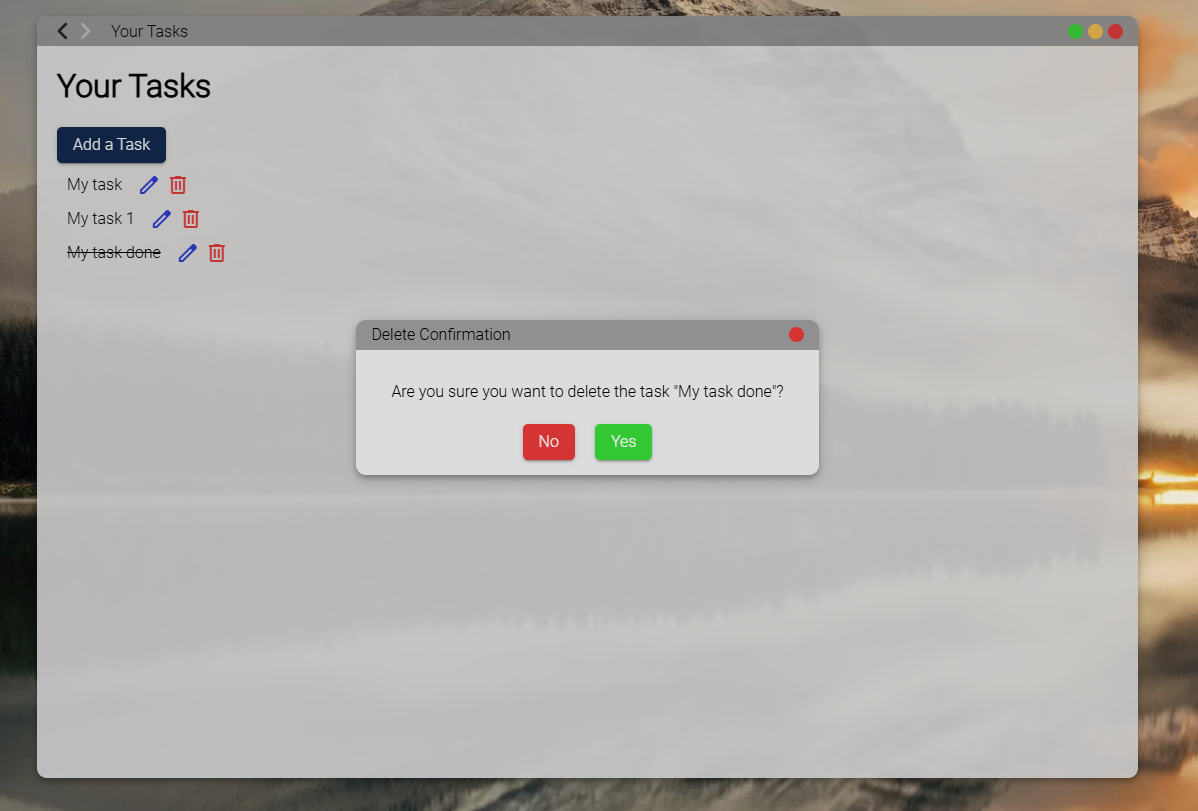
Congratulations! You’ve created your first CRUD functionality within the Rayuki application. The final step involves enabling synchronization between tabs.