

Editing an Application Icon
The source code for your application can be found in the Front/icon/AppIcon directory. The .avt files present are used as follows:
*.wcl.avt: Contains the logic of the component in TypeScript.*.wcs.avt: Contains the styles for the component in SCSS.*.wcv.avt: Contains the structure of the component in HTML.
TypeScript Code: AppIcon.wcl.avt
namespace System {    export class AppIcon extends Core.System.AppIcon implements Aventus.DefaultComponent {
        //#region static        //#endregion
        //#region props        //#endregion
        //#region variables        //#endregion
        //#region constructor        //#endregion
        //#region methods        //#endregion
}}@import '@root/static/_functions.gs.avt';
:host { rk-img { --img-stroke-color: transparent; --img-fill-color: #acf4d6; flex-grow: 1; max-height: 100%; padding: 10%; }}
@include mobile { :host { rk-img { padding: 7px; } }}<rk-img src="~/img/logo.svg"></rk-img>In the HTML code, you can see that it attempts to load the file located in your static folder at /img/logo.svg.
You can create a new file named logo.svg in the /Front/static/img directory and include the following SVG code:
<svg xmlns="http://www.w3.org/2000/svg" height="24" viewBox="0 -960 960 960" width="24"> <path d="M222-200 80-342l56-56 85 85 170-170 56 57-225 226Zm0-320L80-662l56-56 85 85 170-170 56 57-225 226Zm298 240v-80h360v80H520Zm0-320v-80h360v80H520Z"/></svg>To enable hot reloading in your VSCode environment, press F5 while editing an Aventus file, or click the button below.
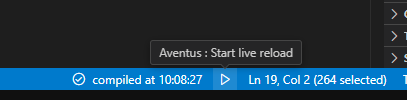
Afterward, refresh your web page to see your icon appear.
You will notice that the icon is colored as green.

To change the fill color of the image, you will need to modify the style in the AppIcon.wcs.avt file.
@import '@root/static/_functions.gs.avt';
:host {	rk-img {		--img-stroke-color: transparent;		--img-fill-color: #fff; /* Change the fill color to white */		flex-grow: 1;		max-height: 100%;		padding: 10%;	}}
@include mobile {	:host {		rk-img {			padding: 7px;		}	}}
This change will modify the fill color of your icon to white.

In Rayuki, you will frequently encounter CSS variables that allow you to style components according to your preferences. In the example above, the web component rk-img defines a variable called fill-color, which allows you to modify its style. For more information on CSS variables, you can refer to the documentation here.
In the next section, you will learn how to create your first view.