

Create your first frame
In Rayuki, a window is referred to as an Application, and each page of the application is called a Frame.
import { IndexFrame } from "./frame/IndexFrame/IndexFrame.wcl.avt";
namespace Application {    export class Main extends Core.System.Application implements Aventus.DefaultComponent {
        //#region static        //#endregion
        //#region props        //#endregion
        //#region variables        //#endregion
        //#region constructor        //#endregion
        //#region methods        /**         * @inheritdoc         */        protected override styleBefore(addStyle: (name: string) => void): void {            super.styleBefore(addStyle);            addStyle("@Demo"); // load custom style for your application        }
        /**         * @inheritdoc         */        protected override async defineRoutes(): Promise<void> {            this.addRoute("/", IndexFrame);        }        //#endregion    }}
In the code above, you can see that the Main component correctly inherits from the Application class of the system. Additionally, there is only one route defined for the application, which states that the default URL / will display the IndexFrame.
namespace Application.Main.Frame {    export class IndexFrame extends Core.System.Frame implements Aventus.DefaultComponent {
        //#region static        //#endregion
        //#region props        //#endregion
        //#region variables        //#endregion
        //#region constructor        //#endregion
        //#region methods        /**         * @inheritdoc         */        public override pageTitle(): string {            return "Demo - Accueil";        }
        /**         * @inheritdoc         */        public override onShow() {        }
        /**         * @inheritdoc         */        public override onHide() {        }        //#endregion    }}
In the IndexFrame class, you will modify the source code to display a title and a navigation link that will allow you to see your tasks. To do this, modify the Index.wcv.avt file by replacing the slot tag with the following content:
<h1>Bienvenue sur l'application de gestion des tâches</h1>
<!-- Add a class that you will style in the Index.wcs.avt file --><div class="center"> <!-- The rk-button is a component from the system that allows you to display a button --> <rk-button> <!-- The rk-link is a component from the system that allows for navigation within the application --> <rk-link to="/todo">Voir vos tâches</rk-link> </rk-button></div>:host { /* The .center class will automatically center our elements */ .center { text-align: center; }}The component’s style file has also been modified to define the .center class, which simply applies text-align: center to the element. It’s important to note that the style applies only to the current component. This means that you can create another component with a .center class that has a different styling effect, with no influence from one component to another. For more information about styling components, you can refer to the documentation here.
Current Result
If you click on the “Voir vos tâches” button, the page will change, and you will reach a 404 page since no frame is defined for the URL /todo. You can go back using the navigation arrows at the top left of the application.
Now, you will create a new frame called TodoFrame. To do this, right-click on the Front/src/application/Main/frame directory and choose the Aventus: Create… option.
In the dropdown, select Component, then Basic, and enter the desired component name: TodoFrame. Finally, choose Multiple.
This will create the three necessary files for the new frame. However, you will notice that the TodoFrame class in the TodoFrame.wcl.avt file inherits from the default component Aventus.WebComponent. You need to change this to Core.System.Frame. Once that is done, the TodoFrame class will be underlined in red due to an error indicating that required frame functions are missing. Hover over the error and press Ctrl + .; VSCode will suggest implementing the missing functions for you. This will generate three new functions:
pageTitle: Defines the desired name for your page.onShow: Performs actions when the page is displayed.onHide: Performs actions when the page is hidden.
You will set the title for the page to “Vos tâches” and leave the onShow and onHide functions empty. You will also add a title to the page.
namespace Application.Main.Frame {    export class TodoFrame extends Core.System.Frame implements Aventus.DefaultComponent {
        //#region static        //#endregion
        //#region props        //#endregion
        //#region variables        //#endregion
        //#region constructor        //#endregion
        //#region methods        /**         * @inheritdoc         */        public override pageTitle(): string | undefined {            return "Vos tâches";        }
        /**         * @inheritdoc         */        public override onShow() {        }
/** * @inheritdoc */ public override onHide() { } //#endregion }}<h1>Vos tâches</h1>Finally, you need to link your Frame to a URL. To do this, open the Main.wcl.avt file and add the line this.addRoute("/todo", TodoFrame); in the routes.
import { IndexFrame } from "./frame/IndexFrame/IndexFrame.wcl.avt";import { TodoFrame } from "./frame/TodoFrame/TodoFrame.wcl.avt";
namespace Application {    export class Main extends Core.System.Application implements Aventus.DefaultComponent {
        //#region static        //#endregion
        //#region props        //#endregion
        //#region variables        //#endregion
        //#region constructor        //#endregion
        //#region methods        /**         * @inheritdoc         */        protected override styleBefore(addStyle: (name: string) => void): void {            super.styleBefore(addStyle);            addStyle("@Demo");        }
        /**         * @inheritdoc         */        protected override async defineRoutes(): Promise<void> {            this.addRoute("/", IndexFrame);            this.addRoute("/todo", TodoFrame);        }        //#endregion    }}
Now, if you click on the “Voir vos tâches” button, you will successfully navigate to your new page.
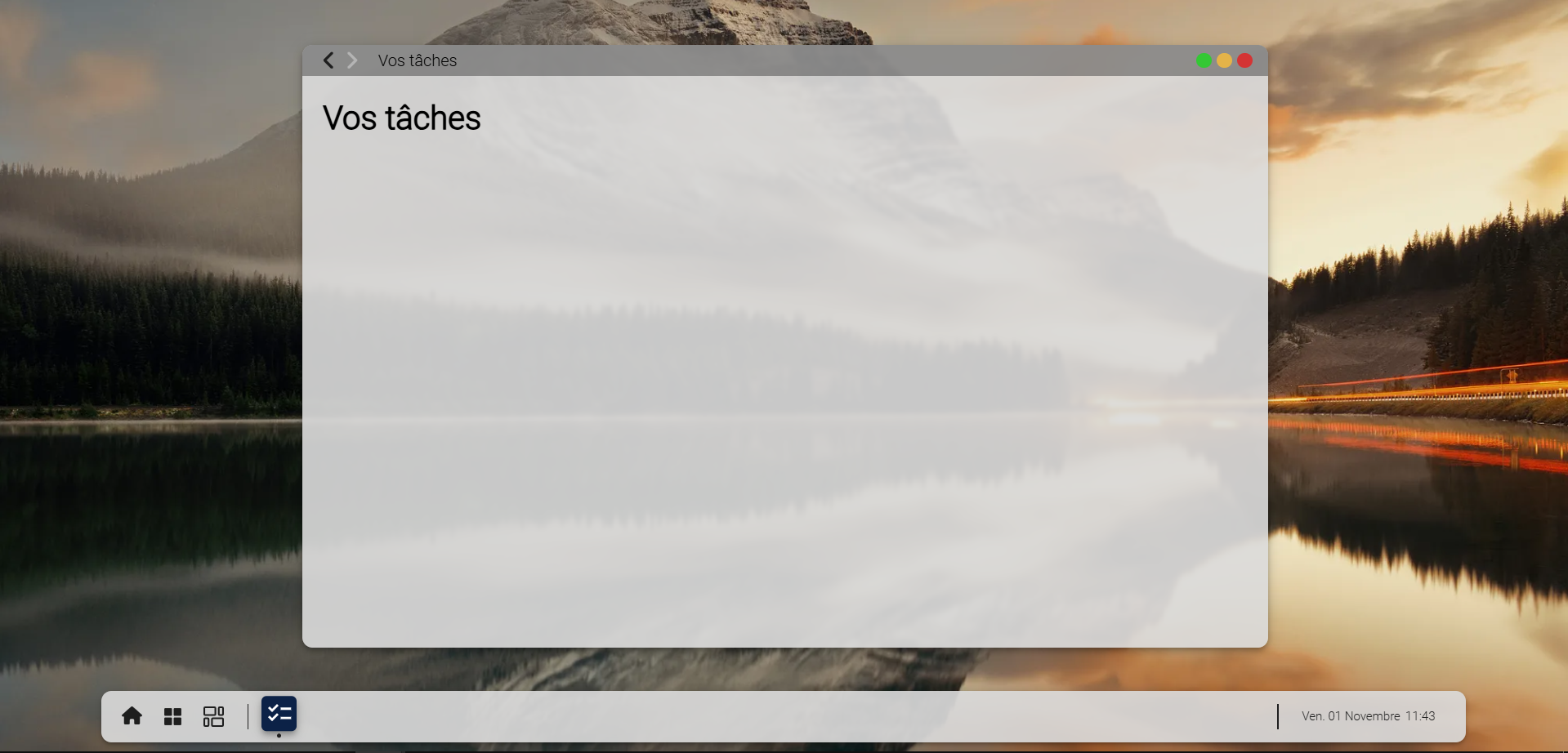
Congratulations! You have created your first view. In the next section, you will learn how to create your database.