

Models Creation
The creation of the database within Rayuki is achieved through the definition of your C# models. Any class that inherits from Storable<> automatically becomes a model that will be registered in the database.
In this tutorial, you will create a simple example. You want a database that contains:
- Todo
- Id: int PK
- Name: string
- Done: boolean
- Step
- Id: int PK
- Name: string
- TodoId: int FK(Todo)
Removing Default Application Files
Before you begin, it’s necessary to delete the default files included in the application. You can remove the following files:
Data/DemoUnit.csLogic/DM/DemoUnitDM.csRoutes/DemoUnitRoute.csWebsocket/Routes/DemoUnitRoute.cs
By deleting these files, you ensure a cleaner slate to work from and can implement your own features without the clutter of unused code.
Creating the Todo Class
You will start by creating your first class called Todo.cs. The first step is to make it inherit from the Storable<> class provided by AventusSharp. The Storable class requires a type within the angle brackets, which will be the model you wish to create, in this case, Todo.
using AventusSharp.Data;using AventusSharp.Data.Attributes;
namespace Demo.Data{    // This creates an empty Todo table in our database.    // The Storable class already contains an Id as a primary key.    public class Todo : Storable<Todo>    {    }}
Next, you simply need to add the desired fields:
using AventusSharp.Data;using AventusSharp.Data.Attributes;
namespace Demo.Data{    public class Todo : Storable<Todo>    {        public string Name { get; set; } = "";
        public bool Done { get; set; } = false;    }}
Compiling the Changes
After modifying the backend code, and since C# is a compiled language, you need to perform a few steps. First, stop your Docker container that is running the core application. Then, execute the following command in the terminal:
npm run buildThis command will compile your application and export it into the OS.
To connect to the database, you need to expose the port of your Docker container locally by updating the compose.yaml inside the core.
services:  db:    image: mysql:8.0.31    environment:      - MYSQL_ROOT_PASSWORD=${MYSQL_ROOT_PASSWORD}      - MYSQL_DATABASE=${MYSQL_DATABASE}      - MYSQL_USER=${MYSQL_USER}      - MYSQL_PASSWORD=${MYSQL_PASSWORD}    ports:      - 3306:3306 # Change to 3307:3306 if you already have a local MySQL instance running    volumes:      - db_data:/var/lib/mysql    networks:      - nginx_network    command: --log_error_verbosity=1
  server:    image: rayuki/core:dev    ports:      - 5000:8080    volumes:      - ./wwwroot/apps:/app/wwwroot/apps      - ./apps:/app/apps      - ./temp:/app/temp      - ./pwa:/app/wwwroot/pwa/custom      - ./Storage:/app/Storage    environment:      - ASPNETCORE_ENVIRONMENT=Development # Set to Production or Development      - MYSQL_ROOT_PASSWORD=${MYSQL_ROOT_PASSWORD}      - MYSQL_DATABASE=${MYSQL_DATABASE}      - MYSQL_USER=${MYSQL_USER}      - MYSQL_PASSWORD=${MYSQL_PASSWORD}      - MYSQL_HOST=db      - RAYUKI_FIRSTNAME=${RAYUKI_FIRSTNAME}      - RAYUKI_LASTNAME=${RAYUKI_LASTNAME}      - RAYUKI_USERNAME=${RAYUKI_USERNAME}      - RAYUKI_PASSWORD=${RAYUKI_PASSWORD}      - LOGGING__LOGLEVEL__DEFAULT=Error      - LOGGING__LOGLEVEL__MICROSOFT=Error      - APP_MANAGEMENT=${APP_MANAGEMENT}    networks:      - nginx_network    depends_on:      - db    restart: "always"
volumes:  db_data:networks:  nginx_network:
After that, you can connect using the credentials provided in the .env file inside the core.
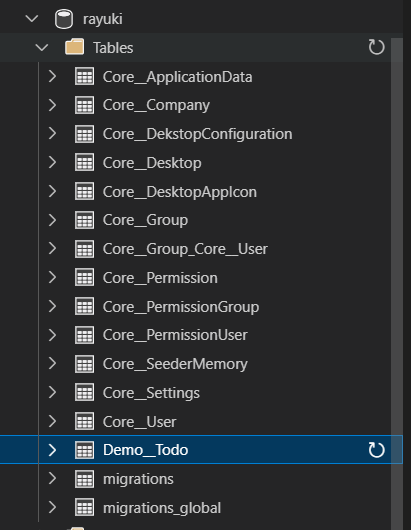
MYSQL_ROOT_PASSWORD=root_passwordMYSQL_DATABASE=rayukiMYSQL_USER=adminMYSQL_PASSWORD=adminRAYUKI_FIRSTNAME=JohnRAYUKI_LASTNAME=DoeRAYUKI_USERNAME=johnRAYUKI_PASSWORD=1234If you explore your database, you will see that a new table has been created. In Rayuki, tables are prefixed by the application name, so our table will be named Demo__Todo.
Adding the Step Class
You can now add your Step class and establish the relationship with the Todo table. There are two ways to create this relationship. You can either use the class directly as a property of the object:
using AventusSharp.Data;
namespace Demo.Data{    public class Step : Storable<Step>    {        public string Name { get; set; } = "";
        // This creates a link between Step and Todo.        // However, this means that when a Step is loaded,        // it will automatically include the associated Todo.        public Todo Todo { get; set; }    }}
Or you can define an Id and use the ForeignKey<> attribute from AventusSharp to create the relationship:
using AventusSharp.Data;using AventusSharp.Data.Attributes;
namespace Demo.Data{    public class Step : Storable<Step>    {        public string Name { get; set; } = "";
        [ForeignKey<Todo>]        public int TodoId { get; set; }    }}
In this case, since you don’t want to load the complete Todo for each Step, you will opt for the second approach. Additionally, it would be useful to have a list of each Step directly within the Todo model. In common language, you can say that a Todo contains multiple Steps. Therefore, you will add a List<Step> to our Todo class:
using AventusSharp.Data;using AventusSharp.Data.Attributes;
namespace Demo.Data{    public class Todo : Storable<Todo>    {        public string Name { get; set; } = "";
        public bool Done { get; set; } = false;
        // The ReverseLink attribute indicates that this is the inverse relationship in the database.        // It does not generate anything in the database but allows easy access to the linked steps for a todo.        [ReverseLink]        public List<Step> Steps { get; set; } = new List<Step>();    }}
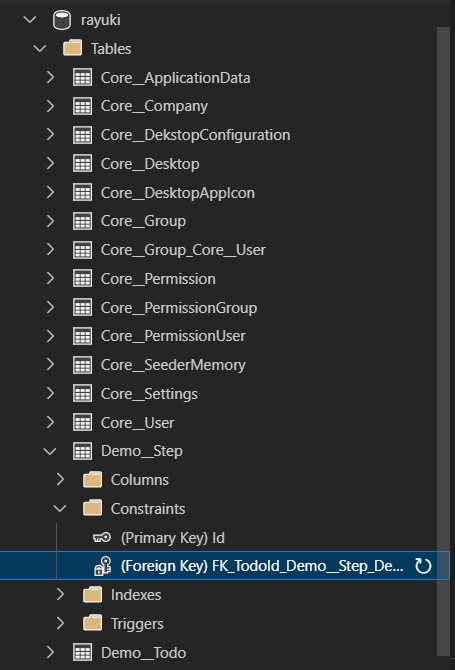
You can recompile your application using the npm run build command and then restart the Docker. Your database should now contain two tables linked.
Using the Models
The implementation of the Storable<> class provides automatic access to CRUD functions. Each function has two forms: you can either return errors with the functions that end in WithError, or simply obtain the result using the basic function. Each CUD function is available on both the model and the class.
You will create a test file in the Logic folder called Test.cs. Below are different ways to insert an element into the database:
using AventusSharp.Tools;using Demo.Data;
namespace Demo.Logic{    public static class Test    {        public static void Create()        {            Todo todo = new Todo() { Name = "Todo1", Done = false };            // Create a todo via the model without worrying about errors            bool resultNoError = todo.Create();            // Create a todo via the model while handling errors            List<GenericError> resultWithError = todo.CreateWithError();
            // Create a todo via the class without worrying about errors            Todo? todo2 = Todo.Create(todo);            // Create a todo via the class while handling errors            ResultWithError<List<Todo>> resultWithError2 = Todo.CreateWithError(new List<Todo>() { todo });        }    }}
Below are examples of how to load elements from the database:
using AventusSharp.Tools;using Demo.Data;
namespace Demo.Logic{    public static class Test    {        public static void Get()        {            // Load a todo by its Id without worrying about errors            Todo? todo = Todo.GetById(1);            // Load a todo by its Id while handling errors            ResultWithError<Todo> resultWithError = Todo.GetByIdWithError(1);
            // Load all open todos            List<Todo> todos = Todo.Where(t => !t.Done);            // Load all open todos while handling errors            ResultWithError<List<Todo>> todosWithError = Todo.WhereWithError(t => !t.Done);
            // Only load the names for open todos            List<Todo> todos2 = Todo.StartQuery()                                    .Field(t => t.Name)                                    .Where(t => !t.Done)                                    .Run();        }    }}
You can see here the simplicity of using AventusSharp. It feels as though our model is writing directly into the database. However, this is not the case, as behind the scenes, the code automatically creates a DataManager for the class. This DataManager is responsible for writing to the database.