

Create Your First Application
To get started with your first application, begin by creating a new folder that will contain your project files. Open this folder using Visual Studio Code (VSCode).
In the VSCode file explorer, right-click anywhere within the folder and select “Aventus: create…” from the context menu. Next, choose the “Init” option followed by “Rayuki app.” By default, the application name will match the name of your folder; feel free to keep this default name.
Explanation of Project Structure
Once your application is set up, you will notice several key folders within your project directory, each serving a specific purpose:
-
_export: This folder contains the compiled files necessary for deploying your application in a production environment.
-
Data: This directory holds the models used throughout your application.
-
Front: The frontend section of your application. Here are its subdirectories:
- icon: Contains the logic required to display your application’s icon.
- src: This is the core of your application, consisting of:
- application: Responsible for rendering the main application interface and managing frames.
- component: A directory for creating reusable components that can be utilized across different parts of your application.
- generated: This folder is where the code generated from C# will be stored.
- lib: Contains application-specific logic and utility functions.
- ram: Holds the RAMs (Resource Asset Management), which are storage components that keep track of your model listings.
- static: Contains static files associated with your application. You can access this folder by prefixing URLs with a
~, allowing for easy retrieval of assets such as the application logo (e.g.,~/img/logo.svg). - aventus.conf.avt: This is the configuration file for Aventus. For detailed configuration options, refer to the Aventus Configuration Documentation.
-
Logic: This folder encapsulates the backend logic of your application. It includes Data Managers (DMs), which are classes responsible for executing logical operations on your models.
-
Migrations: Contains the logic for handling database migrations (changes in database structure) and seeders (inserting initial data into the database).
-
Routes: This directory houses the HTTP routes for your application, facilitating communication between the frontend and backend.
-
Views (Optional): A directory for static views of your application, which can be used for creating static web pages outside of the OS.
-
Websocket: Contains the logic for implementing websockets within your application.
- Events: Holds event handlers that allow for sending information from the server to the client.
- Routes: Contains routes for receiving information from the client side.
-
aventus.sharp.avt: This configuration file for AventusSharp enables the export of C# logic to the frontend, streamlining the integration between backend and frontend code.
Initial Setup and Error Resolution
At this point, you may encounter an error in the Version.lib.avt file. This typically occurs because the code has not yet been generated. To generate the necessary code, open the command palette by pressing Ctrl + Shift + P and execute the command “Aventus: Export Sharp.” This action will export the C# information to the frontend, populating the “generated” folder.
Once the generation is complete, it is advisable to run the command “Developer: Reload Window” to prevent potential errors. After reloading, you can restart your OS. If the command “docker compose up” is currently running, stop it and then restart it to ensure all changes take effect.
Accessing Your Application
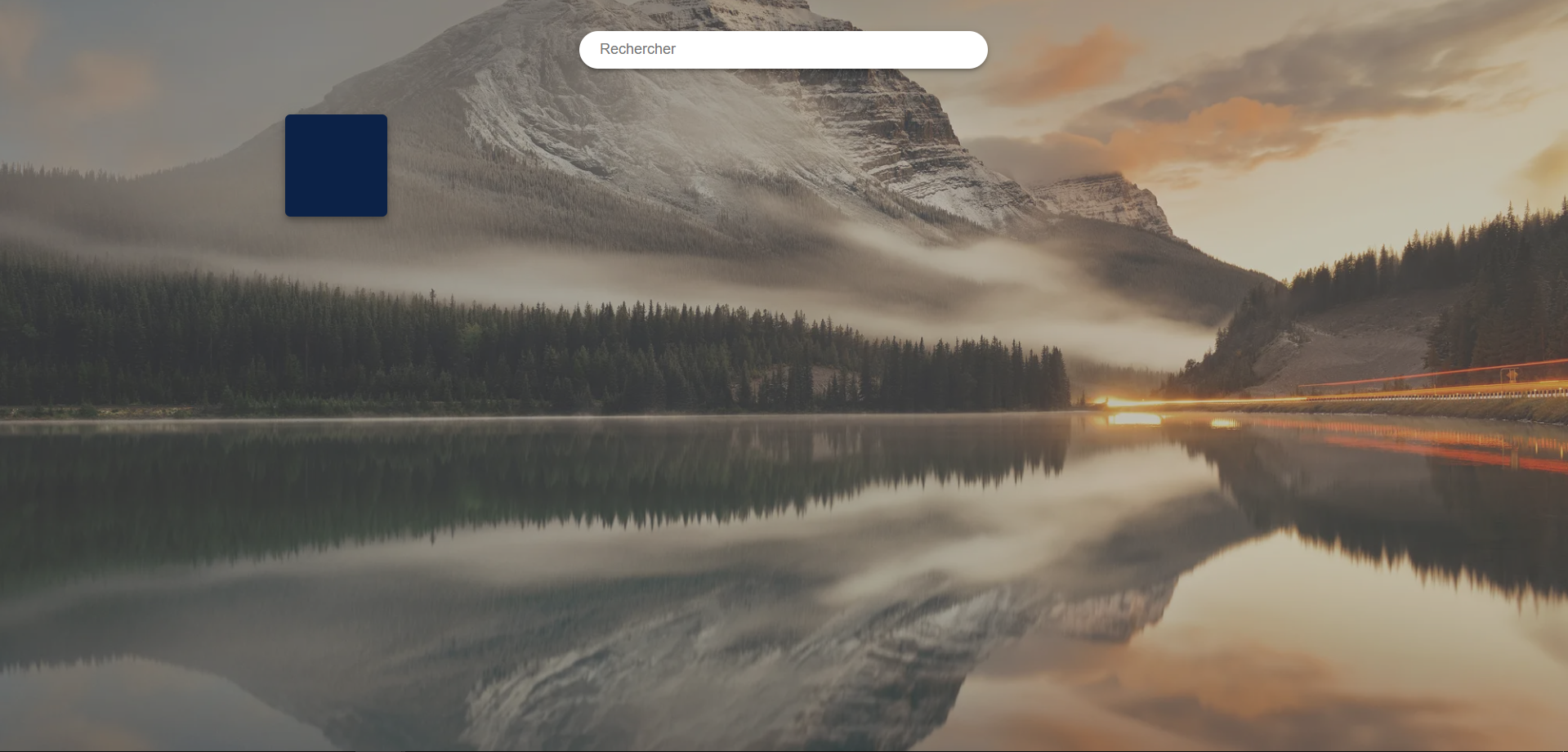
Navigate to http://localhost:5000 in your web browser. You will see a grid of four black squares representing available applications.
If everything has been set up correctly, you should see a blue square representing your application.
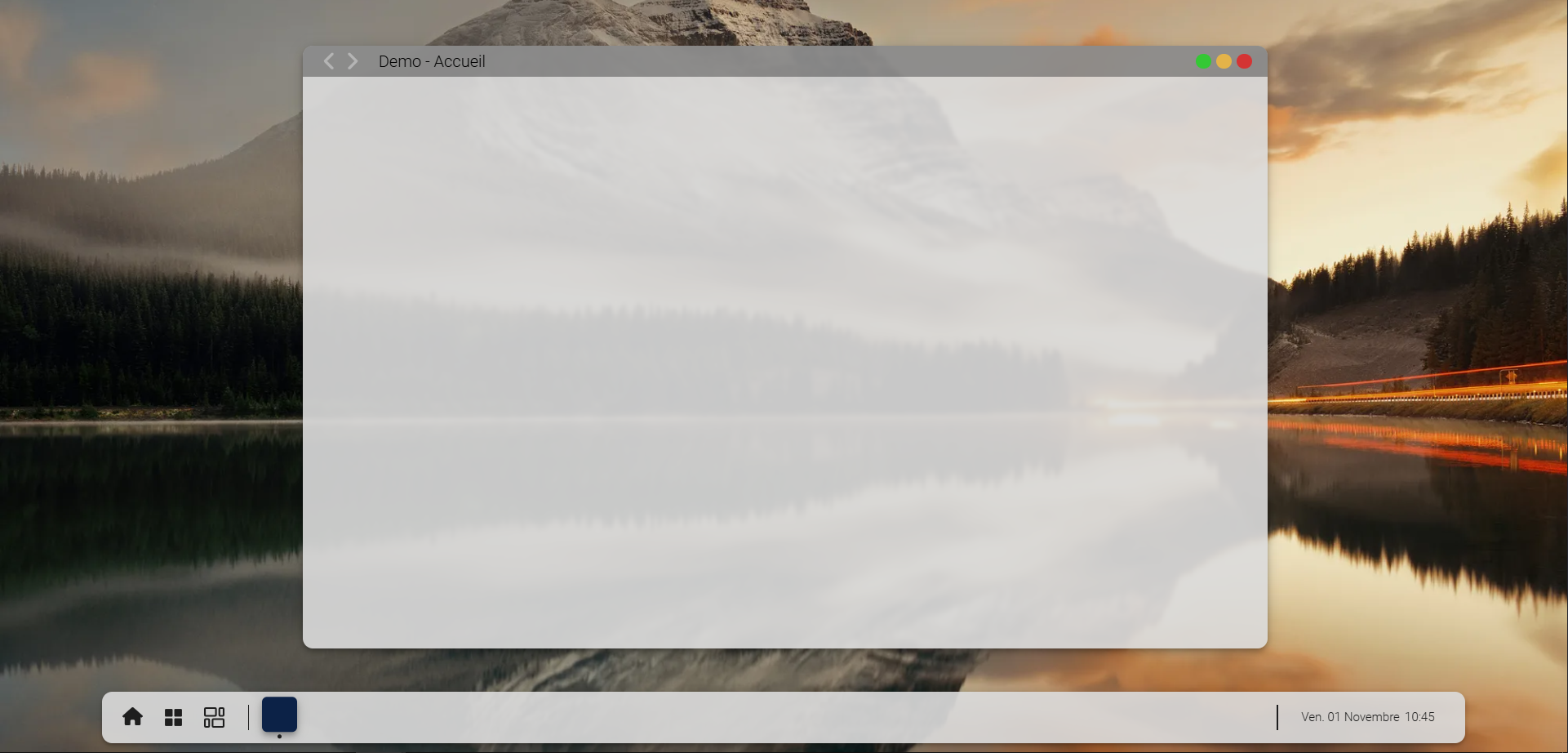
Clicking on this square will open a blank application interface.
In the next section, we will explore how to modify the code for your application’s icon.