Setup
Prerequisites
-
Install VS Code
Download and install Visual Studio Code from the official website. -
Download the “Aventus” extension
Install the “Aventus” extension for VS Code.
For more details, refer to the Aventus documentation. -
Install .NET on your machine
We recommend using the following VS Code extensions for .NET development:.NET Install ToolC#C# Dev Kit
-
Install Docker
Make sure Docker is installed and running on your system. -
Download the Core
Clone the Core repository using the following command:Terminal window git clone https://github.com/Cobwebsite-Rayuki/CoreDev -
Run the environment setup file
- On Windows:
setup_env.bat - On Linux/Mac:
setup_env.sh
- On Windows:
-
Import the Rayuki Project
In VS Code, open the command palette (Ctrl + Shift + P) and search for “Aventus: Import Projects”. Choose the “git” option, and when prompted for the URI, enter:https://github.com/Cobwebsite-Rayuki/RayukiDefaultAppIf this is your first time using Aventus, you can also import additional projects like “Default”, “Empty”, and “Tailwind” as needed. This makes it easy to quickly create applications within Rayuki.
-
(Optional) Install Creation Templates
To add creation templates, open the command palette (Ctrl + Shift + P) and use the command “Aventus: Import Templates”. Select “git” and, in the URI field, enter:https://github.com/Cobwebsite-Rayuki/RayukiTemplates.gitThis will add quick-start templates for easier application development.
Starting Rayuki
- Open a command terminal in the
CoreDevdirectory. - Run the following command:
Terminal window docker compose up - Once you see the message “Apps loaded,” open your browser and go to localhost:5000.
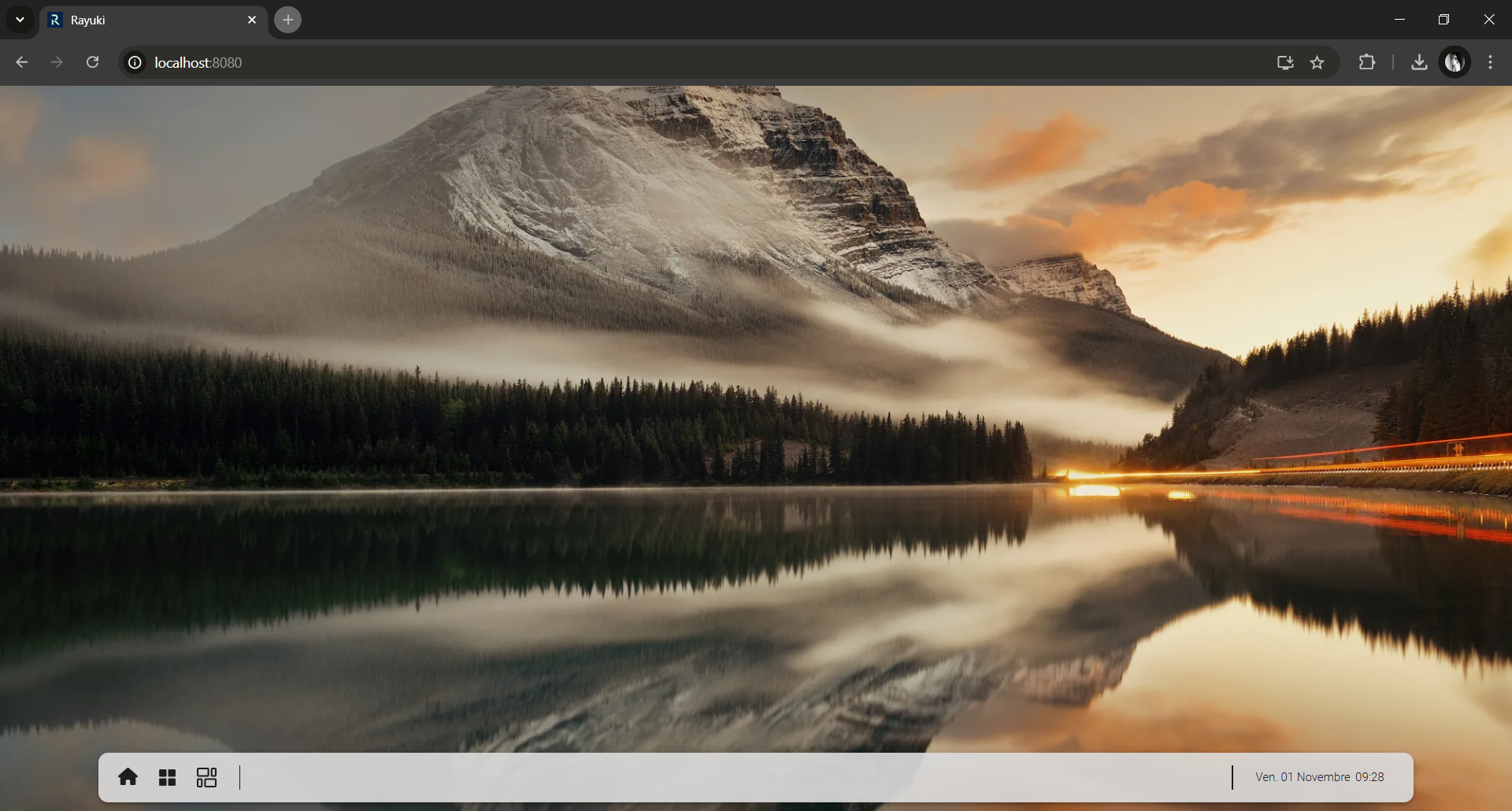
If everything was set up correctly, you should see the Rayuki interface, and you’re ready to start developing your first application!